Posting photos
-
MDLR
Firstly, you need to know where the pictures you want to post are.
When you open the square box where you type your text, there are the words "Attach File" at the bottom of the box. click on these words, and a dialogue box opens. Click on "Browse" - this is where knowing where the picture is on your computer is VERY important! Select the picture, then twiddle your thumbs whilst the picture uploads. This process will generate a few lines of code in the text box - you can cut and paste this to insert a picture between paragraphs of text - leave at least one clear line between text and the code for the picture.
If the pictures are already on line, you can generate a URL by right-clicking on it and selecting "copy image location" - you then click on the "IMG" button, paste the picture location and close the tag by pressing the "IMG" button again.
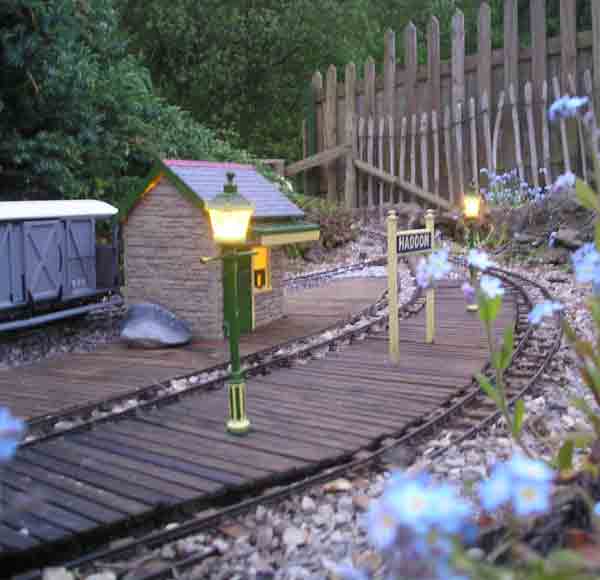
That's how this picture of Haddon station on the MDLR got here.
You might find it beneficial to reply to this posting by clicking on "Quote" - you'll then be able to see how I've done it.
When you open the square box where you type your text, there are the words "Attach File" at the bottom of the box. click on these words, and a dialogue box opens. Click on "Browse" - this is where knowing where the picture is on your computer is VERY important! Select the picture, then twiddle your thumbs whilst the picture uploads. This process will generate a few lines of code in the text box - you can cut and paste this to insert a picture between paragraphs of text - leave at least one clear line between text and the code for the picture.
If the pictures are already on line, you can generate a URL by right-clicking on it and selecting "copy image location" - you then click on the "IMG" button, paste the picture location and close the tag by pressing the "IMG" button again.
That's how this picture of Haddon station on the MDLR got here.
You might find it beneficial to reply to this posting by clicking on "Quote" - you'll then be able to see how I've done it.
-
DickH
Thats exactly what I did but I keep getting an error message??MDLR:98354 wrote:Firstly, you need to know where the pictures you want to post are.
When you open the square box where you type your text, there are the words "Attach File" at the bottom of the box. click on these words, and a dialogue box opens. Click on "Browse" - this is where knowing where the picture is on your computer is VERY important! Select the picture, then twiddle your thumbs whilst the picture uploads. This process will generate a few lines of code in the text box - you can cut and paste this to insert a picture between paragraphs of text - leave at least one clear line between text and the code for the picture.
If the pictures are already on line, you can generate a URL by right-clicking on it and selecting "copy image location" - you then click on the "IMG" button, paste the picture location and close the tag by pressing the "IMG" button again.
That's how this picture of Haddon station on the MDLR got here.
You might find it beneficial to reply to this posting by clicking on "Quote" - you'll then be able to see how I've done it.
-
andymctractor
- Trainee Driver

- Posts: 712
- Joined: Fri Feb 01, 2013 12:03 am
- Location: Suffolk, UK
- Contact:
Re: Posting photos
Hi I'm no expert but I have posted a few photos in the past.DickH:98348 wrote:How do I post photos to my postings?
Note that the way I do it may not be the only way.
First find the image you want to put on your post and make sure the image you are using is less than 2 M in file size.
Next look beneath the box you type replies into and you will see Attach File
click this.
Next select a size to fit. It says 640-480 is recommended but 800-600 works and is a better size.
Next click Browse and find the image file you checked earlier.
Next click Upload File then be patient. If you've done it correctly and not tried to use a photo that is too large you will eventually get a load of code into the box you type your replies into. The code that describes your photo is between (quote= and /quote)
Click the Preview to see what you've got.
Just try one to see if you've got the right idea nd call it 'testing' or similar.
Good luck.
Regards
Andy McMahon
If it moves, salute it. If it doesn't move, paint it. (RN sailors basic skills course 1968)
Andy McMahon
If it moves, salute it. If it doesn't move, paint it. (RN sailors basic skills course 1968)
-
DickH
Re: Posting photos
Just tried again and again got the following error message:andymctractor:98358 wrote:Hi I'm no expert but I have posted a few photos in the past.DickH:98348 wrote:How do I post photos to my postings?
Note that the way I do it may not be the only way.
First find the image you want to put on your post and make sure the image you are using is less than 2 M in file size.
Next look beneath the box you type replies into and you will see Attach File
click this.
Next select a size to fit. It says 640-480 is recommended but 800-600 works and is a better size.
Next click Browse and find the image file you checked earlier.
Next click Upload File then be patient. If you've done it correctly and not tried to use a photo that is too large you will eventually get a load of code into the box you type your replies into. The code that describes your photo is between (quote= and /quote)
Click the Preview to see what you've got.
Just try one to see if you've got the right idea nd call it 'testing' or similar.
Good luck.
Error: failed to copy:http://gardenrails.myfreeforum.org/images/tmp/ to ../../../gallery/1726262.JPG.z
??
-
DickH
Re: Posting photos
You mentioned that the original file size must be less than 2MB? Is that correct as my files are currently around 5MBDickH:98360 wrote:Just tried again and again got the following error message:andymctractor:98358 wrote:Hi I'm no expert but I have posted a few photos in the past.DickH:98348 wrote:How do I post photos to my postings?
Note that the way I do it may not be the only way.
First find the image you want to put on your post and make sure the image you are using is less than 2 M in file size.
Next look beneath the box you type replies into and you will see Attach File
click this.
Next select a size to fit. It says 640-480 is recommended but 800-600 works and is a better size.
Next click Browse and find the image file you checked earlier.
Next click Upload File then be patient. If you've done it correctly and not tried to use a photo that is too large you will eventually get a load of code into the box you type your replies into. The code that describes your photo is between (quote= and /quote)
Click the Preview to see what you've got.
Just try one to see if you've got the right idea nd call it 'testing' or similar.
Good luck.
Error: failed to copy:http://gardenrails.myfreeforum.org/images/tmp/ to ../../../gallery/1726262.JPG.z
??
-
andymctractor
- Trainee Driver
- Posts: 712
- Joined: Fri Feb 01, 2013 12:03 am
- Location: Suffolk, UK
- Contact:
Re: Posting photos
Yes, that is why I suggested you use image files that are less than 2 M. If they are larger than that you get the error message.DickH:98348 wrote:
You mentioned that the original file size must be less than 2MB? Is that correct as my files are currently around 5MB
If you have any photo software on your computer you probably have a means of reducing the file size.
Regards
Andy McMahon
If it moves, salute it. If it doesn't move, paint it. (RN sailors basic skills course 1968)
Andy McMahon
If it moves, salute it. If it doesn't move, paint it. (RN sailors basic skills course 1968)
-
DickH
Just tried photo bucket:pskipper:98366 wrote:I upload the pictures onto photobucket, it provides a copy and paste link for posting them onto forums which works very nicely.
http://s1351.photobucket.com/user/richa ... 6.jpg.html
-
pskipper
- Trainee Fireman

- Posts: 141
- Joined: Sat Nov 23, 2013 5:38 pm
- Location: Lincolnshire

-
DickH
-
pskipper
- Trainee Fireman
- Posts: 141
- Joined: Sat Nov 23, 2013 5:38 pm
- Location: Lincolnshire
I clicked on the link you had in your post, that opened the photobucket page with the picture. On the left hand side of the page there is a white box with links, if you click on the one which I've drawn a red arrow to (see pic below) that will copy the correct link for embedding the picture in a forum post. Then use Ctrl-V (or right click and select paste) to add the link to the post.

Hope this helps

Hope this helps
-
DickH
Thankyou so much - worked great!!pskipper:98381 wrote:I clicked on the link you had in your post, that opened the photobucket page with the picture. On the left hand side of the page there is a white box with links, if you click on the one which I've drawn a red arrow to (see pic below) that will copy the correct link for embedding the picture in a forum post. Then use Ctrl-V (or right click and select paste) to add the link to the post.
Hope this helps
-
Chris Cairns

- Driver

- Posts: 2372
- Joined: Mon Oct 29, 2007 7:25 pm
- Location: Glasgow, Scotland
Who is online
Users browsing this forum: No registered users and 30 guests